You are viewing our forum as a guest. For full access please Register. WindowsBBS.com is completely free, paid for by advertisers and donations.
Adding System Specifications to your Profile
You may add details of your system specification to your user profile on WindowsBBS which will appear on your Member Card which is shown when someone clicks on your name. We encourage all members to complete details of their system as fully as possible to provide a reference source for those members responding to a post.
To obtain details of your system we suggest you download and install Speccy and follow the guide shown below.
We suggest unchecking the option to install additional software (Google Toolbar or CCleaner or others) during installation of Speccy.
Adding your system details is straightforward - go to the Preferences section of your profile and scroll down to where you can enter these details. Once you have entered the details, click the Save Changes button.
System Details Guide
System Specifications
Location in Speccy
Example
PC Make & Model
- -
Enter the make/model if the computer is OEM, e.g Dell Latitude, HP Compaq, Gateway, etc.
Enter either the make and model or self assembled, whichever is appropriate.
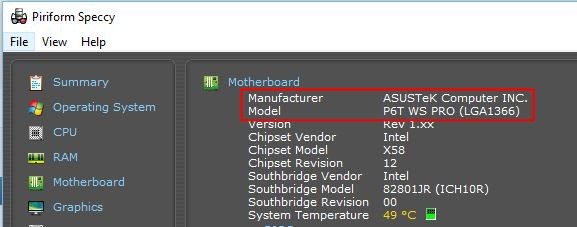
Motherboard
Motherboard
Enter the Manufacturer and Model as listed.
Asus P6T WS PRO
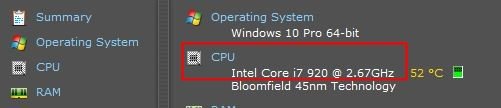
Processor
Summary > CPU
Enter the CPU Name & Clock speed.
Intel Core i7 @ 2.67 GHz
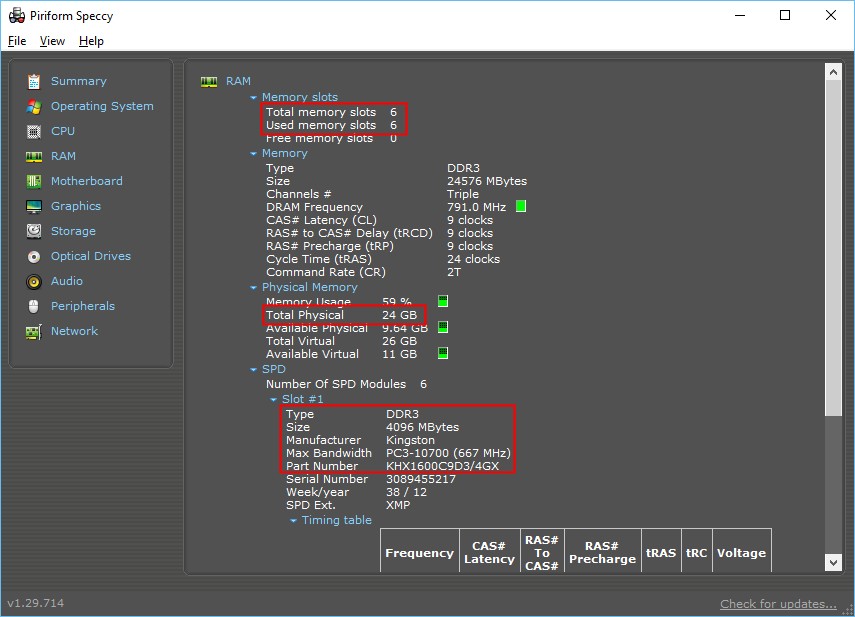
Memory
RAM
The name of the Manufacturer, and the Memory type e.g. DDR3 (PC310700).
Enter the total memory installed, details of the size of the individual memory modules and their type.
You'll have to expand the Slot # under SPD to be able to identify the RAM manufacturer and other details.
24GB (6x4 GB) Kingston KHX1600C9D3/4GX DDR3
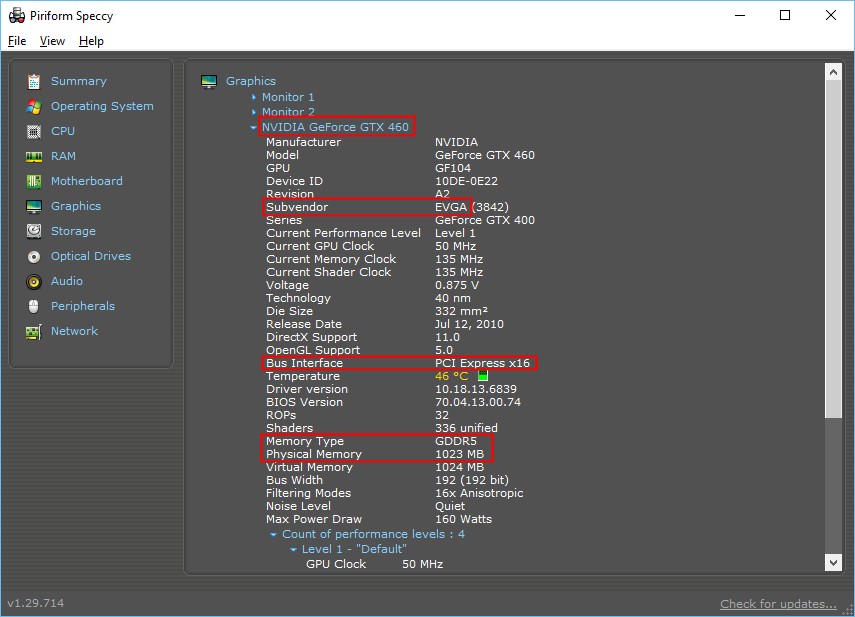
Video Card
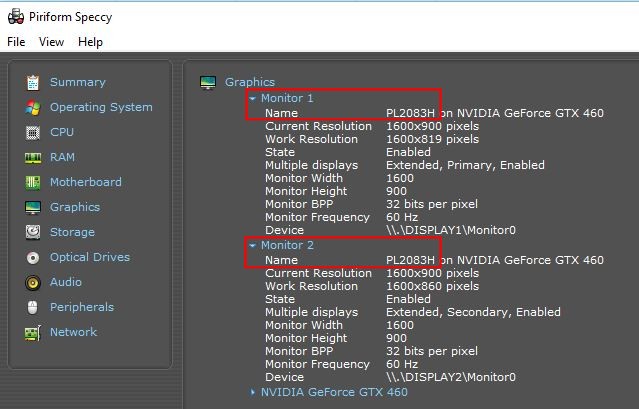
Graphics
Enter the make of the Display Adapter and video memory size/type.
EVGA GeForce GTX 460 1024MB GDDR5
Storage Device #1
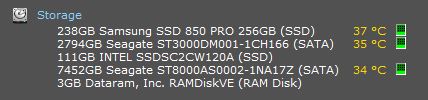
Summary > Storage
Enter the Manufacturer and Model number of the device and it's size and include details of the Interface - IDE, SATA, SCSI.
238GB Samsung SSD 850 PRO
Storage Device #2, etc
Enter the Manufacturer and Model number of the device and it's size and include details of the Interface - IDE, SATA, SCSI.
If you have external hard drives connected you may enter these under Storage Device #2 - #4 if you have no other Internal Storage Devices.
This site uses cookies to help personalise content, tailor your experience and to keep you logged in if you register.
By continuing to use this site, you are consenting to our use of cookies.